 To generate a Daily Report:
Open the Daily Report screen:
To reach the Reports Menu:
The Reports Menu can be accessed by clicking the Reports icon on the Action Bar:

Note: In the NEW look for Skyware, the Action Bar appears slightly different but retains the Room Chart button.

OR
Click Reports from the Status section of the Full Menu.
Click the icon on the left for the Full menu.
 OR
OR 
This will display the Full menu in a tabular form, with four sections, Registration, Status, Cashier and Other.
 OR
OR 
From the Status Section, select Reports.
 OR
OR 
The Reports screen is divided into four sections, Room Reports, Revenue Reports, Managers Reports and Other Reports.
 OR
OR 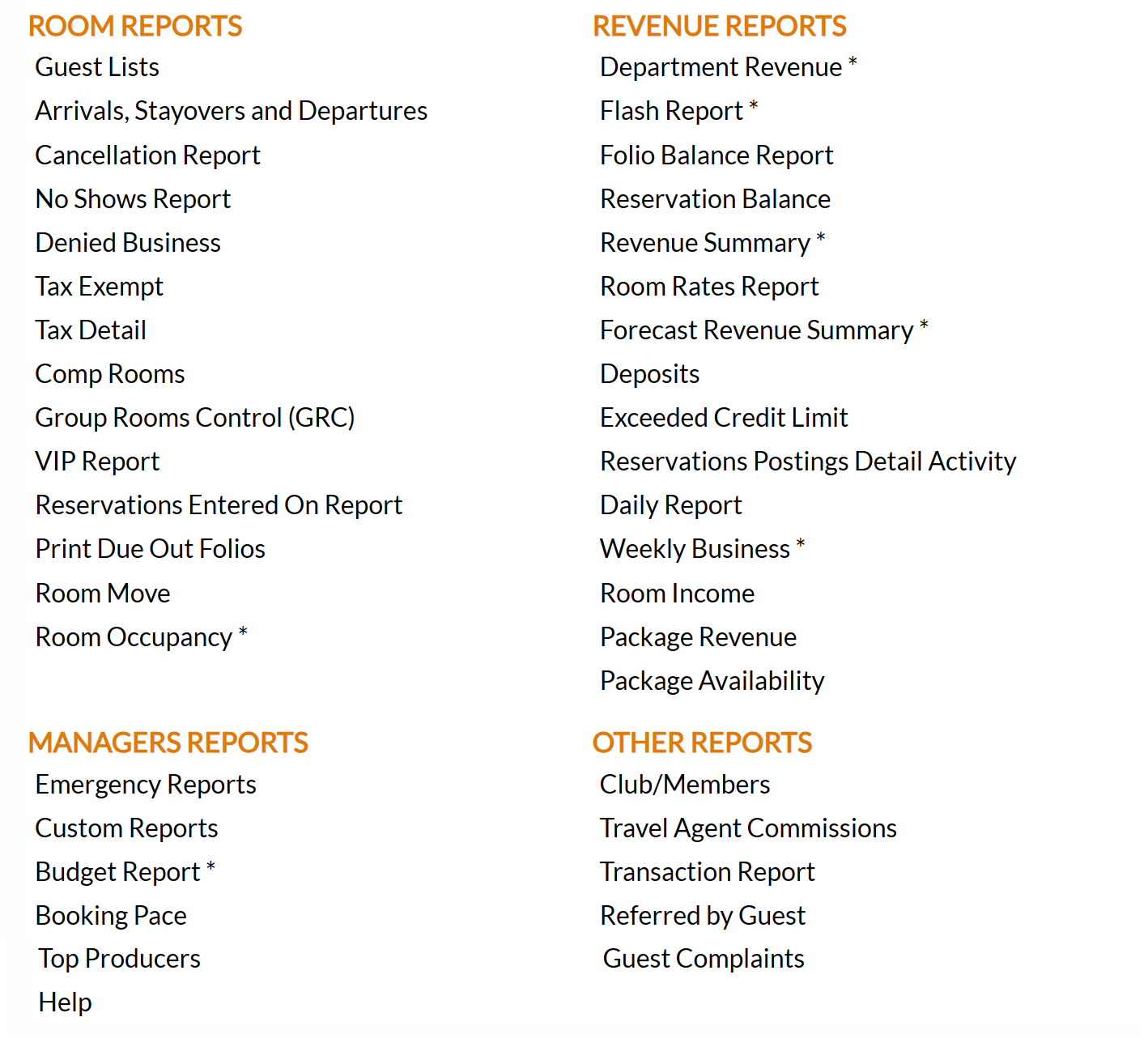
The Daily Report command is in the Revenue Reports section.
 OR
OR 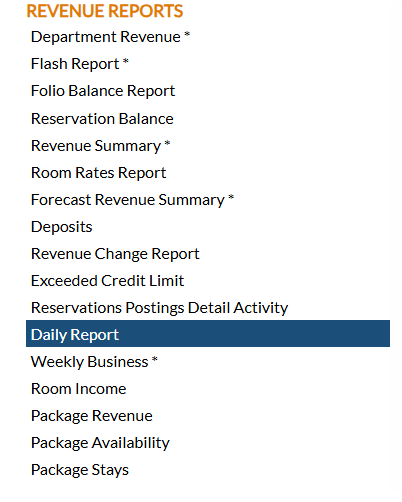
When selected, the Daily Report screen will open.
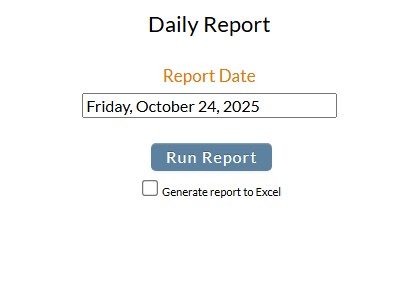
Report Date: You will need to specify the Date for the Report.
Click within the date field to expand the calendar and choose the desired date. By default, today's date is selected.
When ready, click the button Run Report.
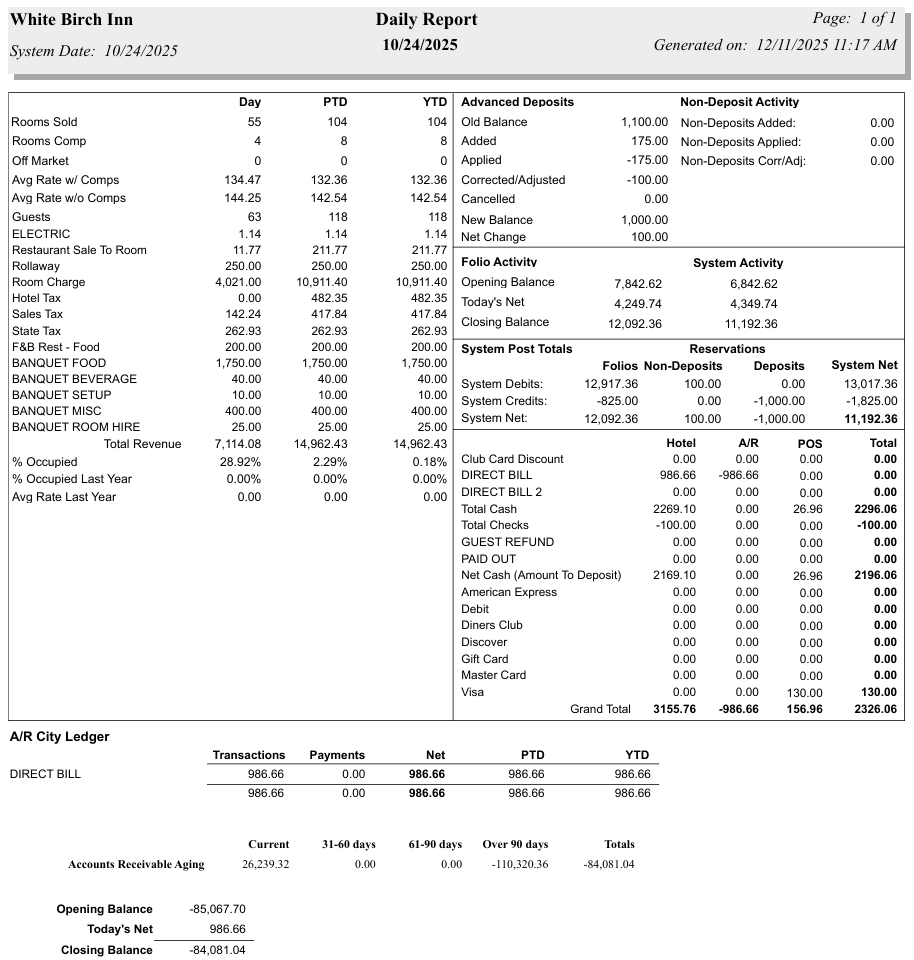
When generated, the report is split into three main sections. The left side of the report shows room and revenue statistics (such as rooms sold, rooms comped, off market rooms, average rates, number of guests, charges and taxes, any food or banquet charges) for the selected day, as well as Period to Date (PTD) and Year to Date (YTD) information, and the right side of the report shows the Advanced Deposit register - the original balance of deposits, added and applied deposits, and the new balance, as well as the Guest folio balance, net, and closing balance. The right side also shows (bottom right section) the payment and refund transactions by type for the Property, the accounts receivable system and the POS system if there is one. The last section, at the bottom of the report, shows the Accounts Receivable (A/R City) Ledger, including the transactions, payments, net, and totals for Period to Date and Year to Date. The total balances for the day (Opening Balance, Today's Net and Closing Balance) appear at the very bottom.
By default, the report is generated in PDF form and opens in a separate browser window. From there you can select to save or print the report, among other options. You can, instead, check the Generate report to excel checkbox to generate the report in HTML for downloading to Excel instead of PDF.
NOTE: The generated report appears as a pop-up window through your browser. If your browser is set to block pop-ups, you may receive a warning banner at the top of the browser. Click this banner and select to allow pop-ups so that you can view the report.